
Introduction to Rich Text Endpoints#
Workiva’s Rich Text endpoints allow customers to interact with content in rich text containers such as section bodies, headers, footers, and footnotes. This guide answers the following questions:
How do I retrieve rich text content for a document section?
How do I set up new rich text content in a document section?
How do I update existing rich text content in a document section?
What are some common concepts to consider when working with rich text?
Example Use Cases#
How do I retrieve content from a section?#
The content within a section consists of a rich text container for the body, header, and footer of the Section.
To retrieve the content from a section, first use a GET section request to retrieve all the richTextId content IDs associated with each container.
Once you have these, you can retrieve the actual section content by referencing its specific richTextId. This is done using a GET rich text paragraphs request using the body.richText content ID.
To retrieve the section’s header or footer content, use the headers.odd.richText or footers.odd.richText ID instead of the body.richText ID.
How do I set up new rich text content in a section?#
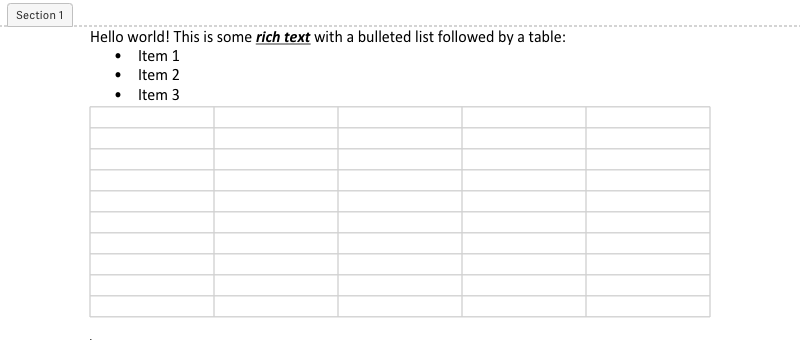
Section content can be created with a POST rich text edit request using the richTextId and a RichTextBatchEdit. The following example shows what a rich text batch edit would look like for creating the following content in an empty section:
curl -X POST -H "Authorization: Bearer ${token}" --data @body.json https://api.app.wdesk.com/prototype/platform/content/richText/WA2NiYGJgm7cWr4W6Ka9BHScz56m2AT2FqTmBgekyk399M99I9Bb69BoEt3WHCag/edit
{
    "revision": "2c6438ab454ffa23",
    "isolateEdits": false,
    "data": [
        {
            "type": "insertText",
            "insertText": {
                "insertAt": {
                    "paragraphIndex": 0,
                    "offset": 0
                },
                "text": "Hello world! This is some rich text with a bulleted list followed by a table:\nItem 1\nItem 2\nItem 3\n",
                "format": {
                    "font": "Calibri"
                }
            }
        },
        {
            "type": "formatText",
            "formatText": {
                "selection": {
                    "start": {
                        "paragraphIndex": 0,
                        "offset": 26
                    },
                    "stop": {
                        "paragraphIndex": 0,
                        "offset": 35
                    }
                },

                "bold": true,
                "underline": true,
                "italic": true
            }
        },
        {
            "type": "setListFormat",
            "setListFormat": {
                "selection": {
                    "start": 1,
                    "stop": 3
                },
                "style": "c3R5bGUta2V5OmJ1bGxldC5yb3VuZA"
            }
        },
        {
            "type": "insertTable",
            "insertTable": {
                "insertAt": {
                    "paragraphIndex": 4,
                    "offset": 0
                },
                "columnCount": 5,
                "rowCount": 10
            }
        }
    ]
}
In this example, the batch edit request isolatedEdits is set to false to allow editing content from a previous edit in the same batch edit collection. When inserting new content it often makes sense to disable isolated edits to allow making compounded edits in the same request.
The batch edit collection contains four edits:
The first edit at
data[0]is an insert text edit that inserts text at the beginning of the section. The line feed character\nis used to denote a new paragraph when inserting text. This allows inserting multiple paragraphs in single insert text edit.The second edit at
data[1]is a format text edit that formats part of the text that was inserted in the previous edit. Even though formats can be applied while inserting text, it often is easier to insert all of the text in a single edit and then apply specific formatting instead of creating multiple insert text edits for each format.The third edit at
data[2]turns three of the new paragraphs into list items using thesetListFormatedit. Thestylein the edit corresponds to the bullet unordered list style id in the style guide. Style guide style ids can be retrieved using a GET style guide by id request. The selection in this edit uses a paragraph selection, instead of a caret selection, in order to select which paragraphs to format.The fourth edit at
data[3]inserts a new table after the last paragraph created in the first insert text edit.
After the request is made, the status of the request can be found through polling the Operations endpoint set in the location header of the batch edit’s response. When the operation is complete a GET request can be made to the completed operation’s resourceUrl to retrieve the rich text batch edit results. The results of this batch edit include the table id associated with the inserted table as well as the new revision:
curl -X GET -H "Authorization: Bearer ${token}" https://api.app.wdesk.com/prototype/platform/operations/851b155b-fc91-4e78-9f45-f627544844bd/richTextBatchEditResults
{
    "data": [
        {
            "type": "table",
            "table": "WAz49BOj899Bve7fhEkdIic7H3S7kNC7Dw3Cz099UClUCjlocESss3t501p2tDs99Aw0hzLlke0qGyYFdvK99fGg"
        }
    ],
    "revision": "2c6438ab454fe2ad"
}
How do I update existing rich text content in a section?#
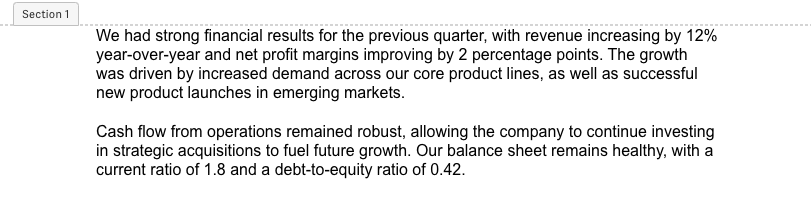
Another common use case for Content endpoints is to update content in an existing section. In this example we’re going to update the example section below to have an additional paragraph between the existing paragraphs, as well as update the text in the last paragraph. Note the initial section content has three paragraphs since the new line between the paragraphs is treated as its own paragraph:
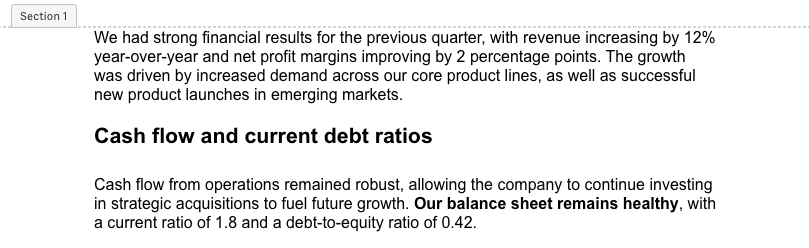
The section text will look like the following after the updates are made:
curl -X POST -H "Authorization: Bearer ${token}" --data @body.json https://api.app.wdesk.com/prototype/platform/content/richText/WA2NiYGJgm7cWr4W6Ka9BHScz56m2AT2FqTmBgekyk399M99I9Bb69BoEt3WHCag/edit
{
    "revision": "2c6438ab454e8b54",
    "isolateEdits": true,
    "data": [
        {
            "type": "insertText",
            "insertText": {
                "insertAt": {
                    "paragraphIndex": 1,
                    "offset": 0
                },
                "text": "\nCash flow and current debt ratios\n",
                "style": "c3R5bGUta2V5Omgy"
            }
        },
        {
            "type": "deleteText",
            "deleteText": {
                "selection": {
                    "start": {
                        "paragraphIndex": 2,
                        "offset": 111
                    },
                    "stop": {
                        "paragraphIndex": 2,
                        "offset": 133
                    }
                }
            }
        },
        {
            "type": "formatText",
            "formatText": {
                "selection": {
                    "start": {
                        "paragraphIndex": 2,
                        "offset": 135
                    },
                    "stop": {
                        "paragraphIndex": 2,
                        "offset": 168
                    }
                },
                "bold": true
            }
        }
    ]
}
In this batch edit request, isolatedEdits is set to true to make updating content easier. With this setting, all offsets are based on the rich text’s state at the revision included in the request, and do not take into account previous edits in the same batch edit collection.
This batch edit collection contains three edits:
The first edit at
data[0]inserts a new paragraph after the second paragraph. The insert using thestyleID associated with the Heading 2 style in the style guide. Style guide style ids can be retrieved using a GET style guide by id request.The second edit at
data[1]deletes the end of the first sentence in the third paragraph. Note that sinceisolatedEditsis set totrue, the paragraph index for the delete text edit does not take into account the two new paragraphs inserted from the first edit.The third edit at
data[2]applies a bold format to the beginning of the second sentence in the third paragraph. SinceisolatedEditsis set totrue, the offset for formatting the text does not take into account the deleted text in the second edit and the paragraph index does not take into account the new paragraphs inserted from the first edit.
If this same edit was attempted with isolatedEdits set to false the following error would be returned since the paragraph at index 1 corresponds to an empty line before the edits were made:
{
    "code": "invalidRequest",
    "details": [
        {
            "code": "invalidRequest",
            "message": "offset is out-of-bounds of the paragraph",
            "target": "/data/1"
        }
    ],
    "message": "invalid batch edits",
    "documentationUrl": "https://developers.workiva.com/prototype-platform/prototype-editrichtextbyid/?rel=error"
}
Common Concepts#
Paragraphs#
Rich text content is organized into a ParagraphsListResult. There is always at least one Paragraph at the start of any rich text content. This starting paragraph may be formatted like any other paragraph; however, the starting paragraph may not be deleted. Based on the properties applied to paragraphs, a paragraph may represent a list item, bullet point, or page break as well as a paragraph separator. Each paragraph object contains a list of elements for the whole paragraph.
Elements#
Elements are the text and content within a Paragraph.
The main type of element is a
TextSpan. Text spans are similarly formatted unicode characters (for example, italic, or colored green). Each text span will have a length indicating how many unicode characters are within the text span.
Important
The text span length may not match the number of characters since JSON requires UTF-8 encoding not Unicode.
Embedded content elements are those which reference other content such as a
TableTextElement,ImageTextElement, andChartTextElement. These will always have a length of one.Dynamic content elements are those which become text during layout such as a
SectionPageNumber,DestinationLinkTextElement, andFootnoteIndicator. These will always have a length of “1” regardless of how many characters they would appear as in the document’s layout.
Carets#
Carets represent a location within rich text before or after a character.
A Caret contains two parts: an offset (offset), and a zero based paragraph index, (paragraphIndex). The offset is a sum of the element lengths from the start of a paragraph. Offsets may not be negative.
Rich Text Selections#
Selections represent a range of rich text content containing a set of multiple elements in a paragraph, potentially including the paragraph object.
A RichTextSelection contains two carets: start and stop. The start caret identifies a location in the rich text before the stop caret such that at least one unicode character is between the two carets.
The following examples help demonstrate how rich text selections work in Content endpoints.
Selecting the second character in a paragraph#

"selection": {
  "start": { "paragraphIndex": 0, "offset": 1 },
  "stop": { "paragraphIndex": 0, "offset": 2 }
}
Selecting the entire paragraph#

"selection": {
  "start": { "paragraphIndex": 0, "offset": 0 },
  "stop": { "paragraphIndex": 0, "offset": 15 }
}
Important
When selecting the whole paragraph, or several whole paragraphs, the paragraph object itself may be included in the selection depending on which action is performed. For example, with this example where all of paragraph 0 is selected, if the selection is used to make the paragraph bold, the text formatting on the paragraph itself will also be set. If the paragraph properties indicate this paragraph is a list item, the glyph for the list item will become bold too. Look at the description of the edit being performed with the selection to see if it will include the paragraph object for whole paragraph selections.
Selecting across paragraphs#
When selecting across paragraphs, the paragraph object within the selection will be affected by the edit too. For the following example paragraph 0 will be modified as well. If the edit using this selection is to delete the content, then paragraph 1 will also be removed, and the text “A mote of dust” would move to the first paragraph.
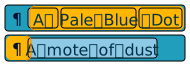
"selection": {
  "start": { "paragraphIndex": 0, "offset": 0 },
  "stop": { "paragraphIndex": 1, "offset": 0 }
}
Selecting individual paragraphs#
Each paragraph (with the exception of the initial paragraph) can be selected by itself to be deleted or formatted as needed. The following shows how to select the second paragraph. If this selection was used in a delete text edit, the text “A mole of dust” would move to the first paragraph.
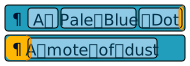
"selection": {
  "start": { "paragraphIndex": 0, "offset": 15 },
  "stop": { "paragraphIndex": 1, "offset": 0 }
}
Selecting embedded content#
Selecting across elements other than text spans is the same as selecting across text spans. The following example shows how an embedded table could be selected for a rich text edit to delete the table.

"selection": {
  "start": { "paragraphIndex": 2, "offset": 2 },
  "stop": { "paragraphIndex": 2, "offset": 3 }
}
Paragraph Selections#
Paragraph selections represent a range of rich text paragraph objects. This selection is typically used for changing indents, lists, alignment, and other paragraph properties and formats.
A ParagraphSelection contains a start and stop paragraph index to indicate the paragraphs to include in the selection. The start and stop paragraph indexes are inclusive.
The following example helps demonstrates selecting the first two paragraphs:
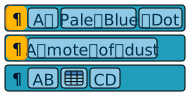
"selection": {
  "start": 0,
  "stop": 1
}